powershell json config-mgmt searching JSON files with regular expressions in PowerShell
Notes & motivation
Many Microsoft cloud services can export their configuration as JSON. Whether it’s Entra ID, Conditional Access, Intune, or application manifests, the result is often a large configuration dump containing thousands of nested objects. Tools such as Tenant Governance, Microsoft365DSC, or custom scripts make exporting the data relatively easy.
The real challenge is usually finding a specific configuration artifact hidden somewhere inside it.
Common examples include:
- Which Conditional Access policies reference a particular group?
- In which applications is a specific group assigned?
- Which SSO or service principal configuration contains a given claim mapping? For example, where is the
sam_account_nameclaim used? - Which settings reference a specific URL, domain, GUID, or application ID?
Tools such as jq work well when you already know the JSON structure. In practice, investigations often start with the opposite problem: you know the value you’re looking for, but have no idea where it is located. While jq supports recursive searches, building the required queries can quickly become cumbersome.
To simplify this process, I created json-regex-search, a lightweight PowerShell and HTML-based toolset that combines jq and regular expressions to search JSON files and return matching paths, top-level objects, and selected properties.
The project is available on GitHub.
What can it do?
The project provides two ways to explore and search JSON files:
- an interactive HTML frontend for ad-hoc investigations
- and a set of PowerShell scripts for automation and advanced analysis.
HTML frontend
Most investigations start with a JSON export and a simple question:
- Where is this thing used?
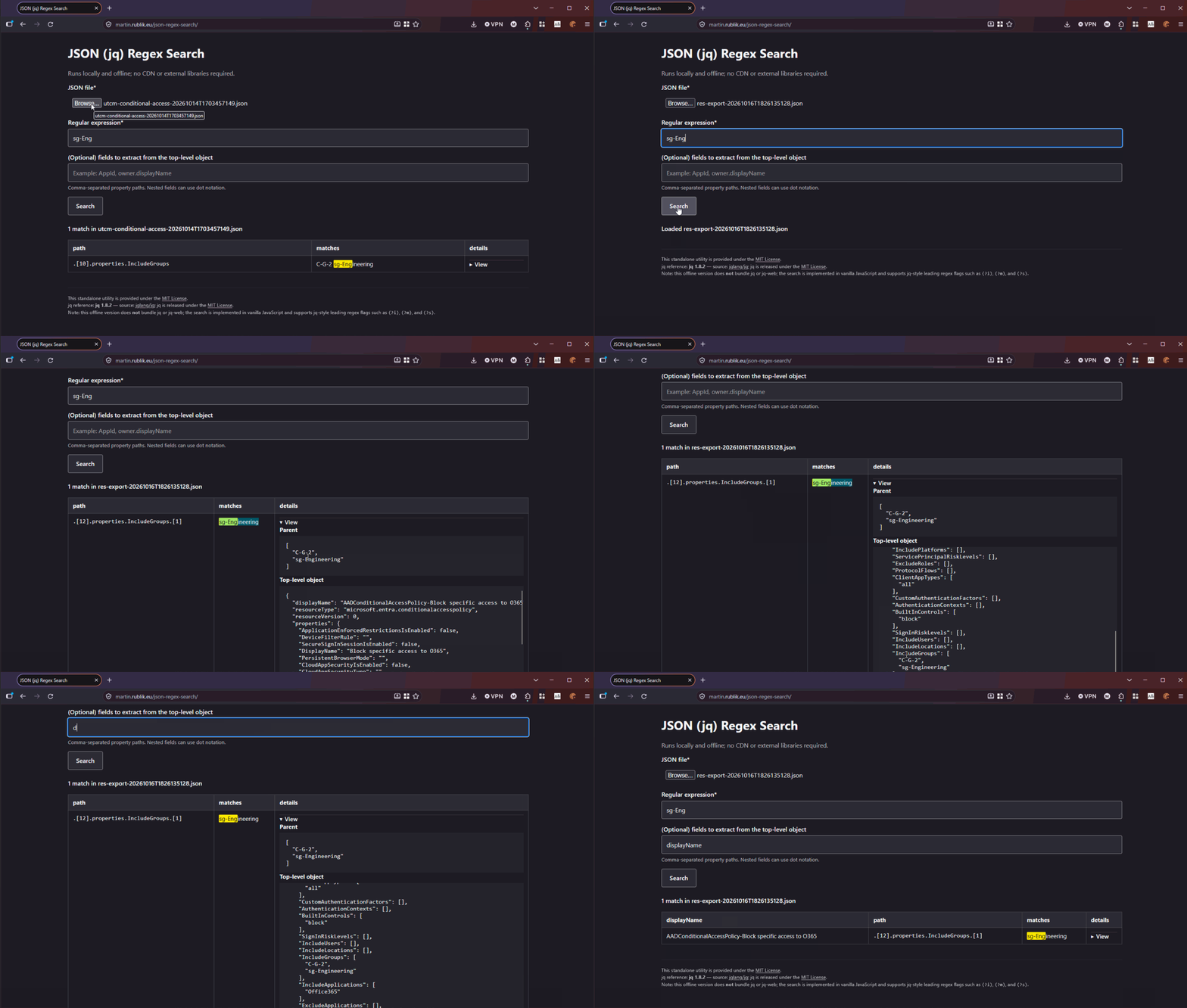
The HTML frontend is designed for exactly this scenario. Simply load a JSON file, enter a search pattern, and start exploring the results. A key advantage is that everything runs locally in your browser. No internet connection is required, and the JSON data never leaves your machine. The frontend allows you to:
- Search JSON documents using regular expressions
- Navigate matching jq-style paths
- Display parent and top-level objects
- Inspect the context surrounding a match
- Extract selected properties from matching objects
- Experiment with different search patterns interactively
The easiest way to demonstrate its capabilities is through a practical example.
Searching for a group name in Tenant Governance Configuration Management export
First, export the JSON from Tenant Governance Configuration Management (UTCM). A full introduction to UTCM is beyond the scope of this post, but the following sample export provides enough context to demonstrate the JSON export workflow.
# prepare a request, we would like to include these resources
$RequestBody = @"
{
    "displayName": "MR Test $((get-date).ToString('yyyyMMdHHmmss'))",
    "description": "This is a snapshot created via the Graph API for Entra CA Policy",
    "resources": [
        "microsoft.entra.application",
        "microsoft.entra.conditionalaccesspolicy",
    ]
}
"@

$Uri = "https://graph.microsoft.com/beta/admin/configurationManagement/configurationSnapshots/createSnapshot"
$NewSnapShot = Invoke-MgGraphRequest -Uri $Uri -Method Post -Body $RequestBody

# wait synchronously for the job to complete, and check the status every 5
# seconds
do
{
    $job = Invoke-MgGraphRequest -Method GET -Uri "https://graph.microsoft.com/beta/admin/configurationManagement/configurationSnapshotJobs/$($NewSnapShot.id)?`$select=errorDetails,status,displayName,resourceLocation"
    $job
    Start-Sleep -Seconds 5
}until($job.status -ne 'notStarted' -and $job.status -ne 'running')

# get the snapshot and export the resources to a file
$snapShot = Invoke-MgGraphRequest  -uri $job.resourceLocation -Method GET -OutputType Json

# expand just the resources array we don't need the rest of the snapshot
# metadata, and export to a file
$snapShot | ConvertFrom-Json | select -ExpandProperty resources | ConvertTo-Json -depth 100 | Out-File -FilePath "./json/res-export-$(get-date -Format FileDateTime).json" -Encoding utf8
After downloading the JSON you can load it into the
json-regex-search and search for
the group name, in our case it is a group starting with sg-Eng.
Find-JsonMatch.ps1
Find-JsonMatch.ps1 recursively traverses a JSON document and applies a regular
expression to all string values.
Instead of returning only the matching value, the command can provide useful context around the match:
- jq-style paths to matching elements
- Parent objects
- Top-level objects
- Selected properties from matching objects
- Detailed match information suitable for further processing
When working with large configuration exports containing thousands of objects, this often saves a significant amount of manual navigation. Also it enables you for advaned filtering (ofc. after the JSON parsing).
❗IMPORTANT❗ Before using
Find-JsonMatch.ps1, installjqand ensure the executable is available in your system path. The script relies onjqand cannot run without it.
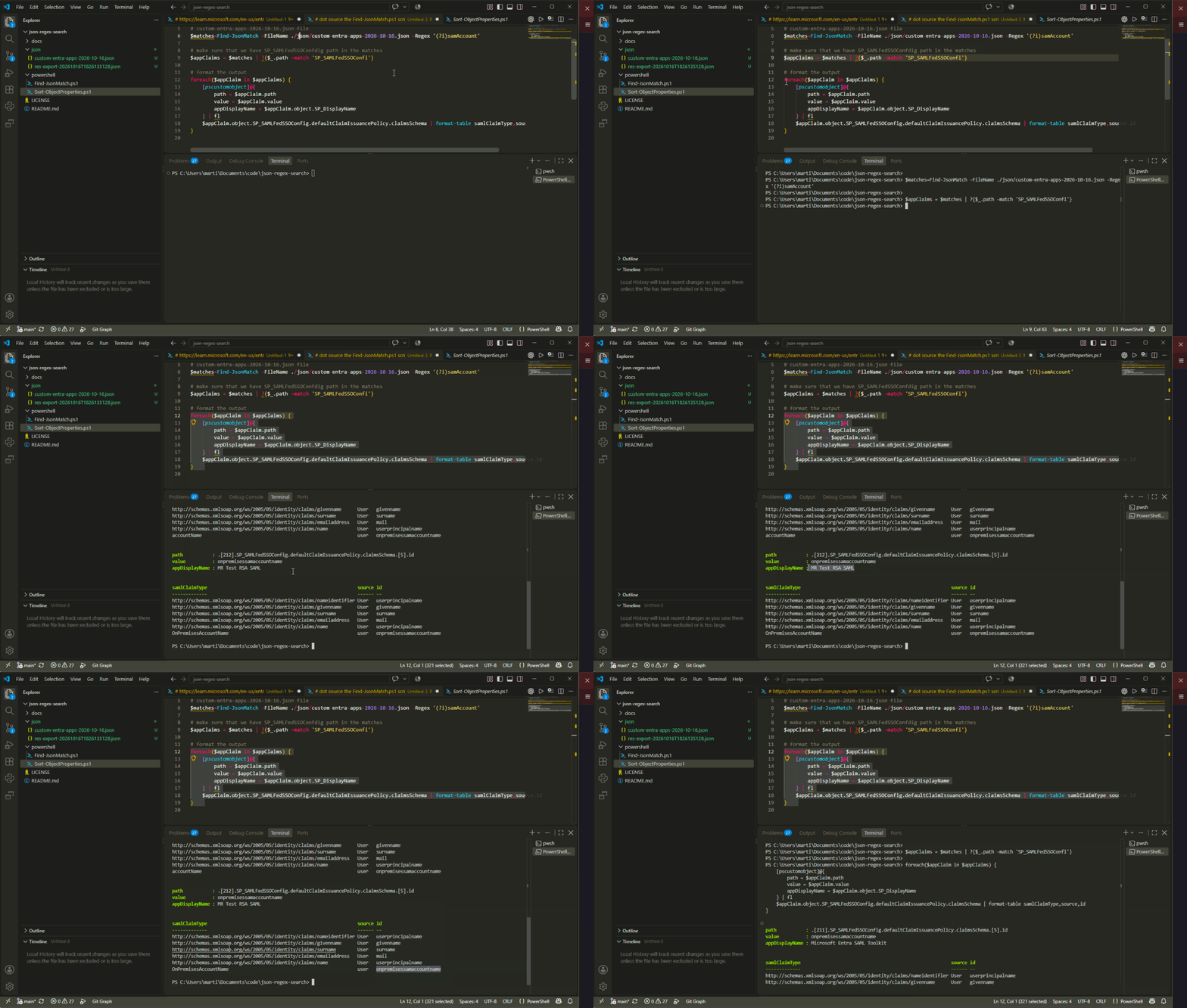
Following script snippet can be used to illustrate such approach.
# dot source the Find-JsonMatch.ps1 script to use the Find-JsonMatch function
. ./powershell/Find-JsonMatch.ps1

# search for all `samAccount` occurences in the
# custom-entra-apps-2026-10-16.json file
$matches=Find-JsonMatch -FileName ./json/custom-entra-apps-2026-10-16.json -Regex '(?i)samAccount'

# make sure that we have SP_SAMLFedSSOConfdig path in the matches
$appClaims = $matches | ?{$_.path -match 'SP_SAMLFedSSOConfi'}

# format the output
foreach($appClaim in $appClaims) {
    [pscustomobject]@{
        path = $appClaim.path
        value = $appClaim.value
        appDisplayName = $appClaim.object.SP_DisplayName
    } | fl
    $appClaim.object.SP_SAMLFedSSOConfig.defaultClaimIssuancePolicy.claimsSchema | format-table samlClaimType,source,id
}
Sort-ObjectProperties.ps1
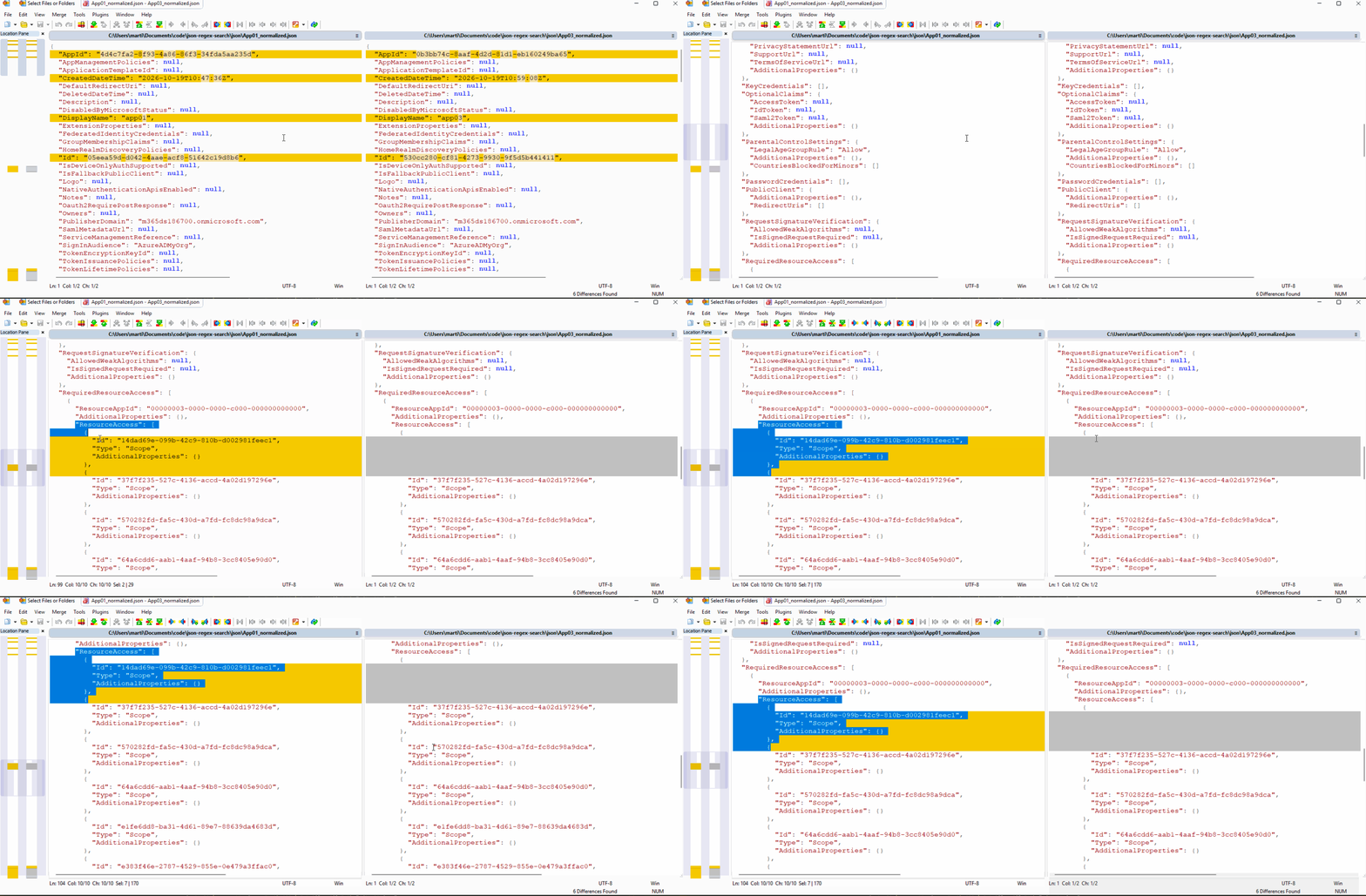
When comparing JSON exports, property ordering frequently creates unnecessary noise in diffs.
Sort-ObjectProperties.ps1 recursively sorts object properties to produce
deterministic output, making it easier to:
- Normalize JSON exports from different systems and prepare those for comparison
- Create repeatable test baselines.
The command is particularly useful before running file comparisons or committing exported configurations to source control.
I recently found it useful when comparing application configurations, especially OAuth consent grants. Even when the actual configuration is identical, differences in property ordering can make reviews harder than they need to be.
In the following example, I compare two application manifests. Before normalization, the order of OAuth consent grants differs, making the diff harder to read.
After normalization, the differences become easier to identify.
# Get applications
$apApp01=Get-MgApplication -Filter "displayName eq 'App01'"
$apApp03=Get-MgApplication -Filter "displayName eq 'App03'"

# export native json
$apApp01 | convertto-json -Depth 100 | Out-File -FilePath "./App01.json"
$apApp3 | convertto-json -Depth 100 | Out-File -FilePath "./App03.json"

# dot source the sort-objectproperties function
. ../powershell/Sort-ObjectProperties.ps1

# normalized the object and export to json
$normalizedApp01 = Sort-ObjectProperties -InputObject $apApp01 | ConvertTo-Json -Depth 100 | out-file  -filePath "./App01_normalized.json"
$normalizedApp03 = Sort-ObjectProperties -InputObject $apApp02 | ConvertTo-Json -Depth 100 | out-file  -filePath "./App03_normalized.json"
Before the normalization the RequiredResourceAccess is scattered:
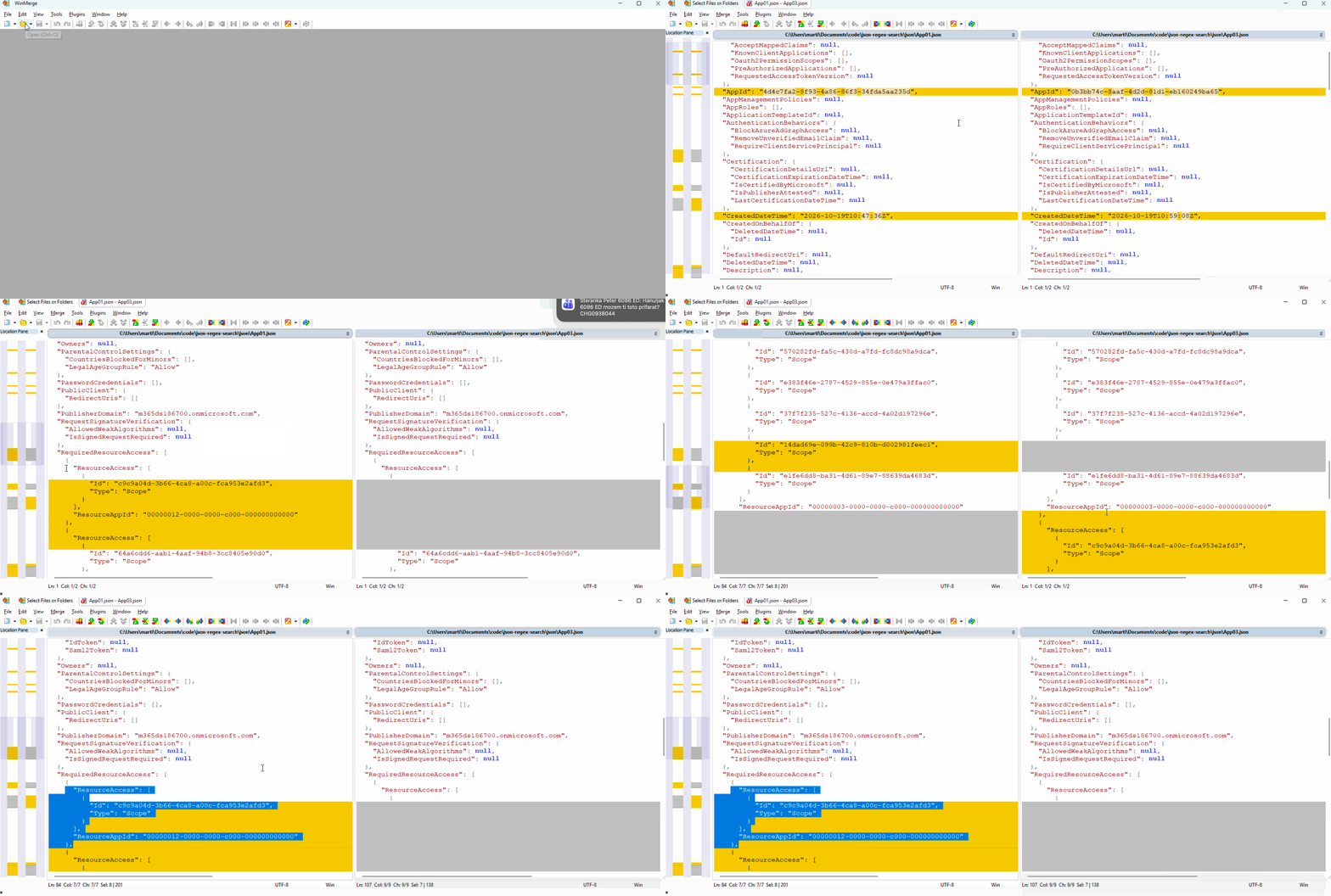
After the normalization is applied, the RequiredResourceAccess is aligned and
clearly shows the missing OAuth grant.